
Frequently Asked Questions
Who can I refer to regarding further enquiries relating to eCCRIS usage?
You may refer to CCRIS website: www.bnm.gov.my/ccris for more information.
How do I submit disputes/data verification requests to the financial institution? When will the financial institution respond to the case?
The function to channel data verification for application/account directly to the participating financial institutions (PFIs) is temporarily unavailable due to system upgrade.
In the event of any dispute on the accuracy of application/account details (outstanding credit/special attention account/application for credit), eCCRIS users are advised to contact their respective PFIs immediately. The contact information is available at:
Banking institutions: www.bnm.gov.my/list-of-licensed-financial-institutions ;
Development financial institutions: www.bnm.gov.my/list-of-development-financial-institutions ; or
You may refer to your PFIs’ official websites.
Under normal circumstances, it may take up to 14 working days for the financial institution to provide feedback on disputes initiated by the user.
I am an authorised representative of a company. How can I perform a dispute/verify the company’s profile data/record (e.g. name spelling, registration date, and pending verification status) as indicated in the CCRIS report?
Follow the same steps as self-enquiry on own CCRIS report. Please refer to Section B (Q8).
Will the CCRIS kiosks still made available for individuals to register eCCRIS?
Yes, the CCRIS kiosks at AKPK offices nationwide are still available for individuals to register eCCRIS.
Is CCRIS a blacklist report?
No. CCRIS is a credit report that lists the current and historical credit standing data of a particular borrower as reported by participating financial institutions. The CCRIS report does not provide any opinion/rating and it does not blacklist any borrower regardless of the repayment history.
What are eCCRIS’s operation hours?
eCCRIS is available from 6:00 a.m. - 12.00 midnight, Monday to Friday (excluding public holidays).
I am an individual Malaysian with MyKad and internet banking facility. How do I register for eCCRIS online?
Infographic: Step-by step guide to create your eCCRIS account
Tutorial Video: Watch step-by-step to create your eCCRIS account
My account has been locked. How do I reactivate my account?
a. Click “Reactivate Account”
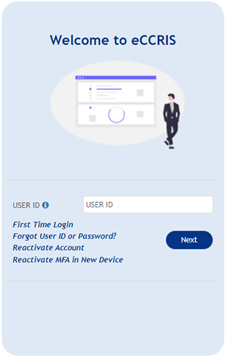
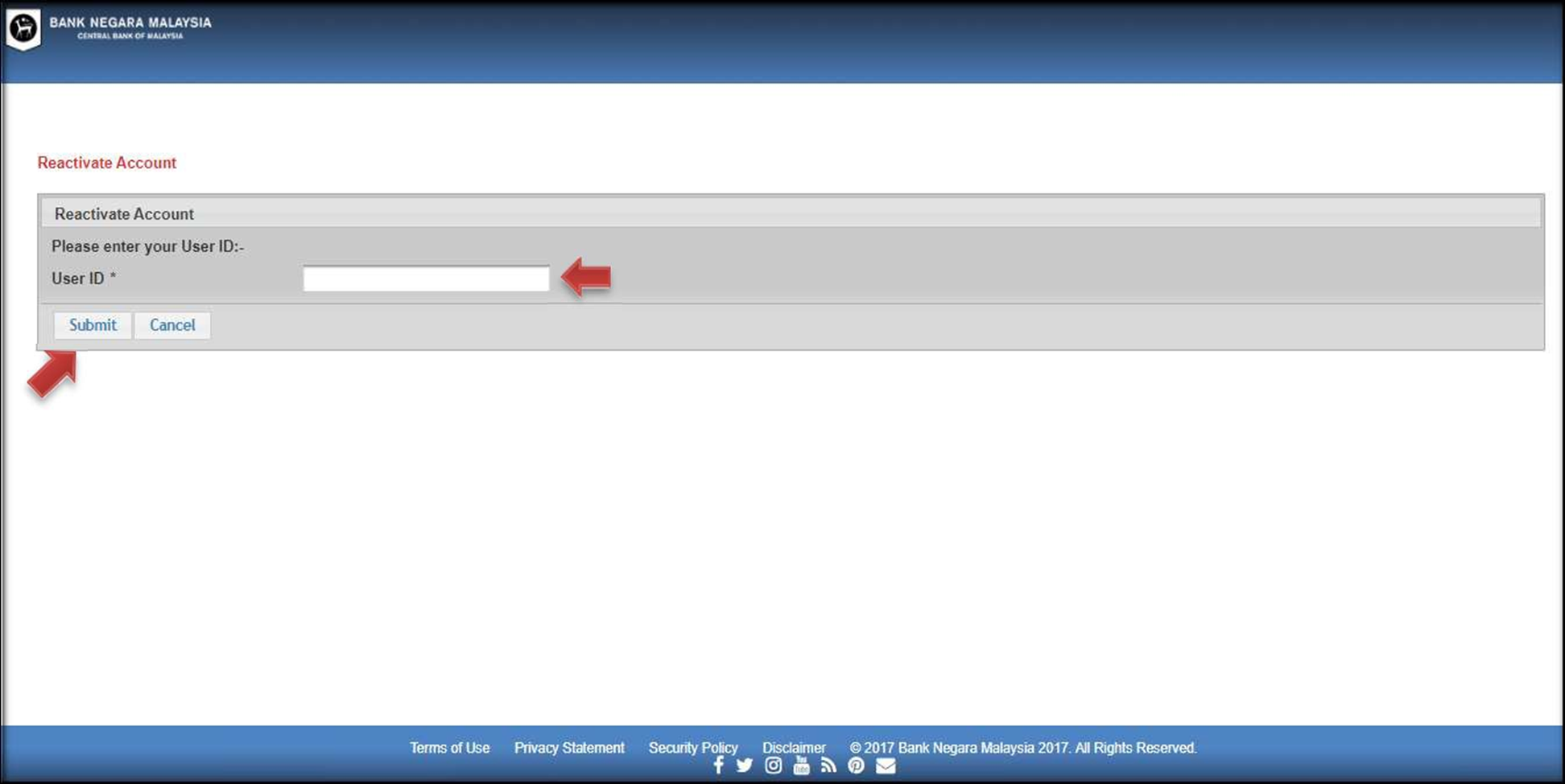
b. The screen below will be displayed.
i. Enter User ID (as created by user)
ii. Click the “Submit” button
c. The screen below will be displayed. Key in the answer and click the “Submit” button.
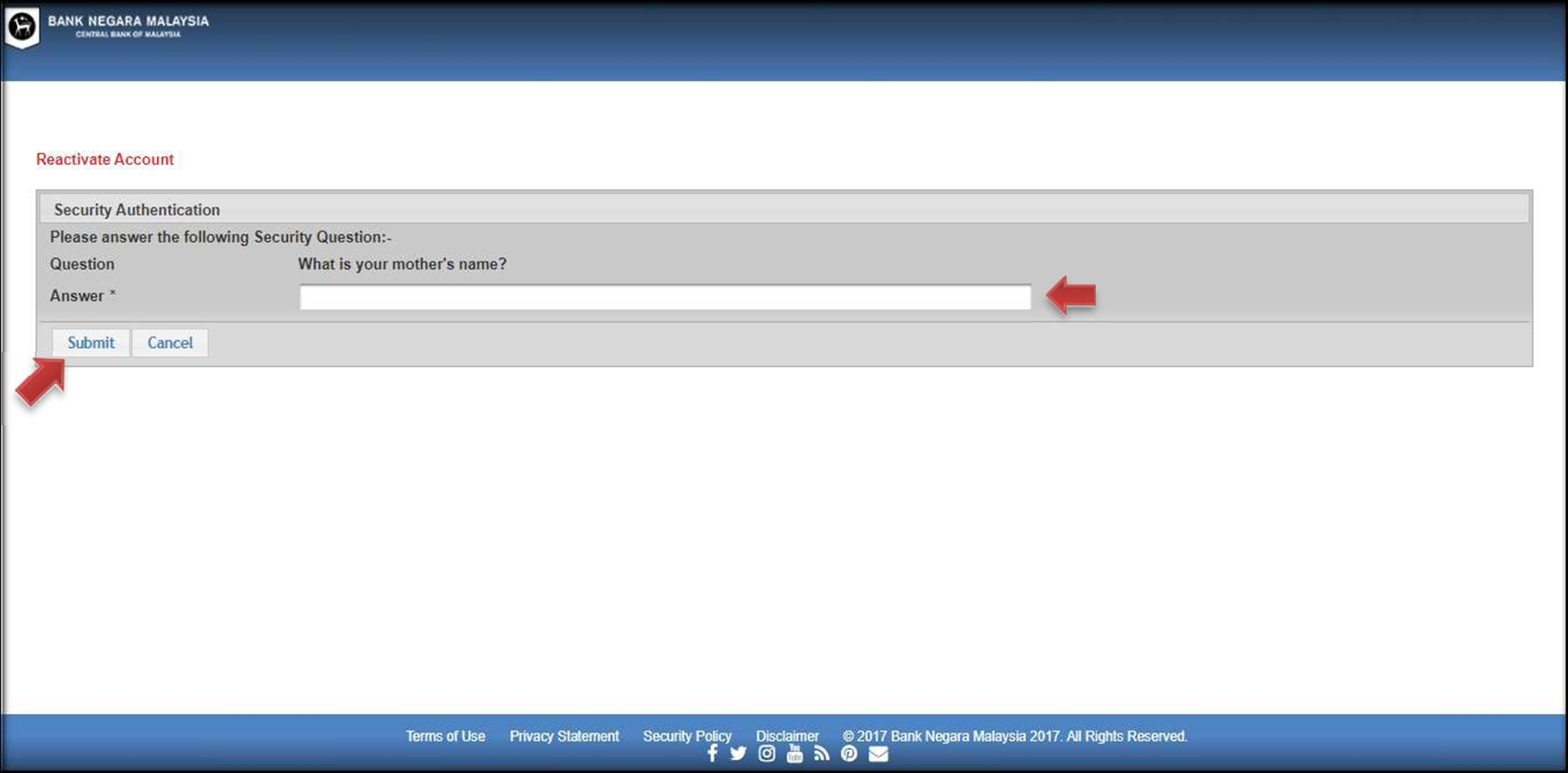
Note: If the user does not answer the security question correctly, he/she has up to three (3) attempts to answer correctly three (3) different security questions.
I forgot my User ID and password. How do I access eCCRIS?
a. Click “Forgot User ID or Password?”
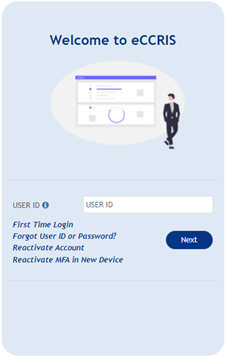
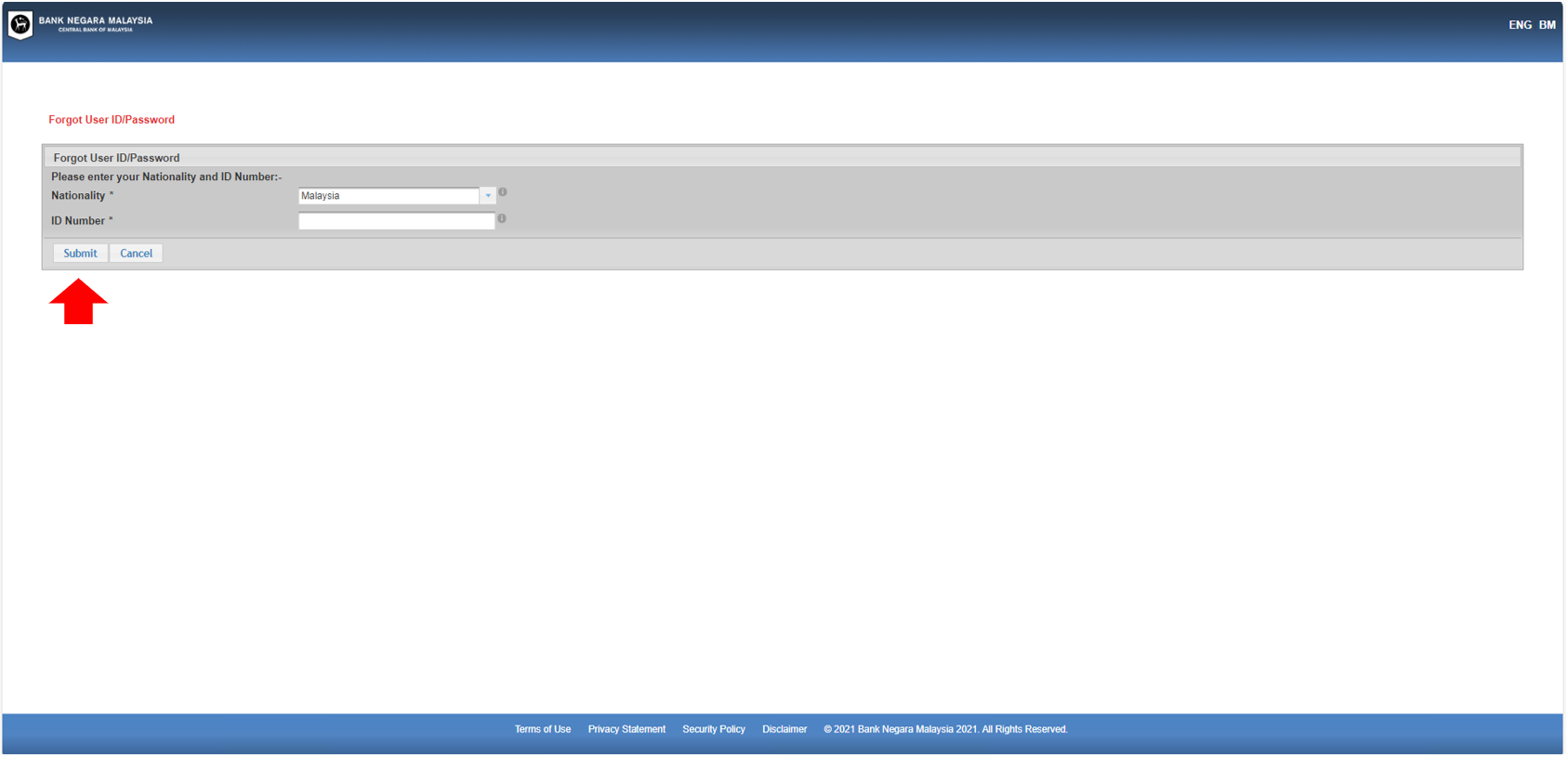
b. The screen below will be displayed.
i. Please select your “Nationality” (i.e. Malaysia)
ii. Fill up ID number (12-digit MyKad/NRIC number or Passport number)
iii. Click the “Submit” button
c. The screen below will be displayed. Please answer “Security Question”. Then click the “Submit” button.
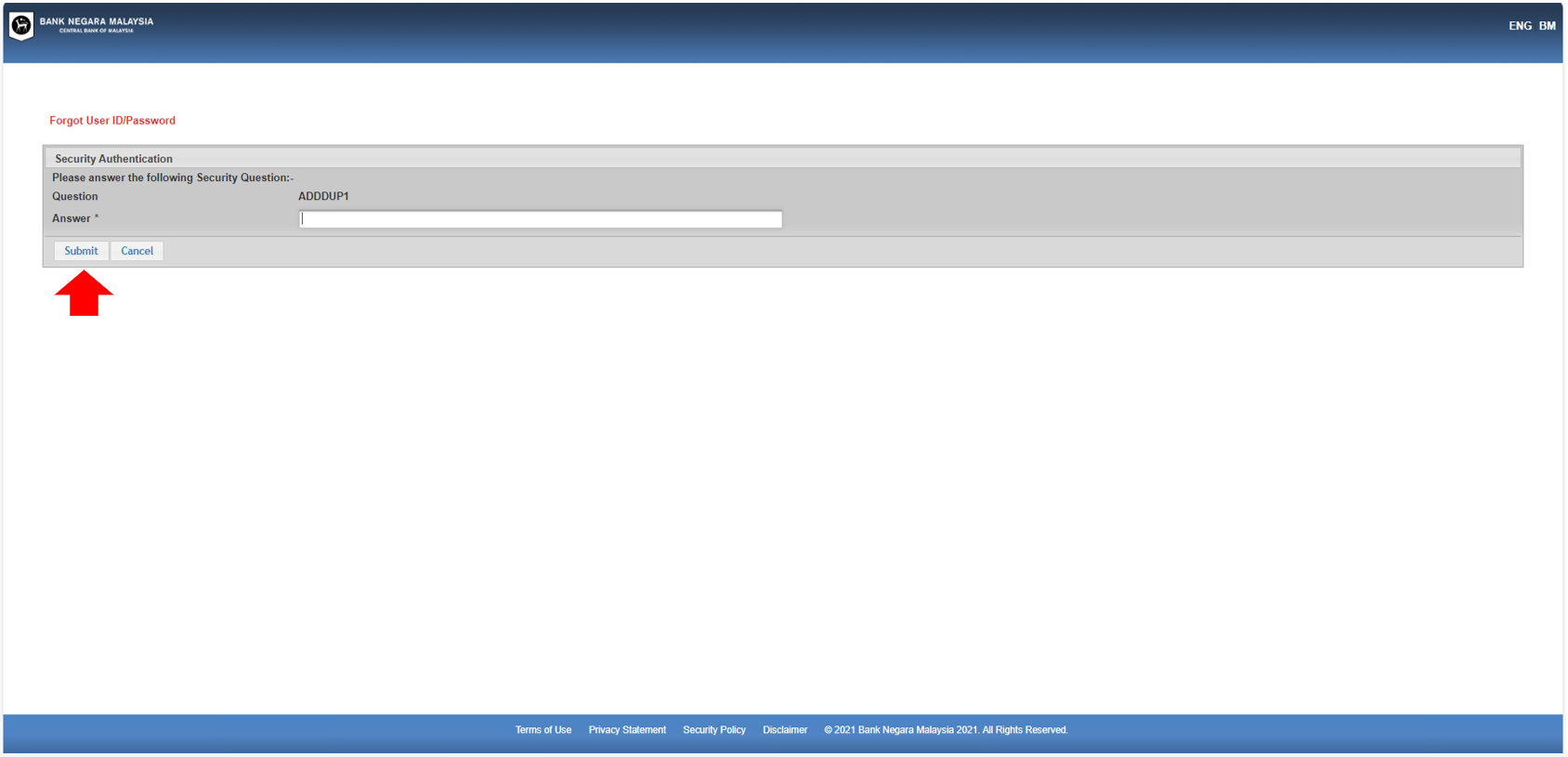
Note: If the user does not answer the security question correctly, he/she has up to three (3) attempts to answer correctly three (3) different security questions.
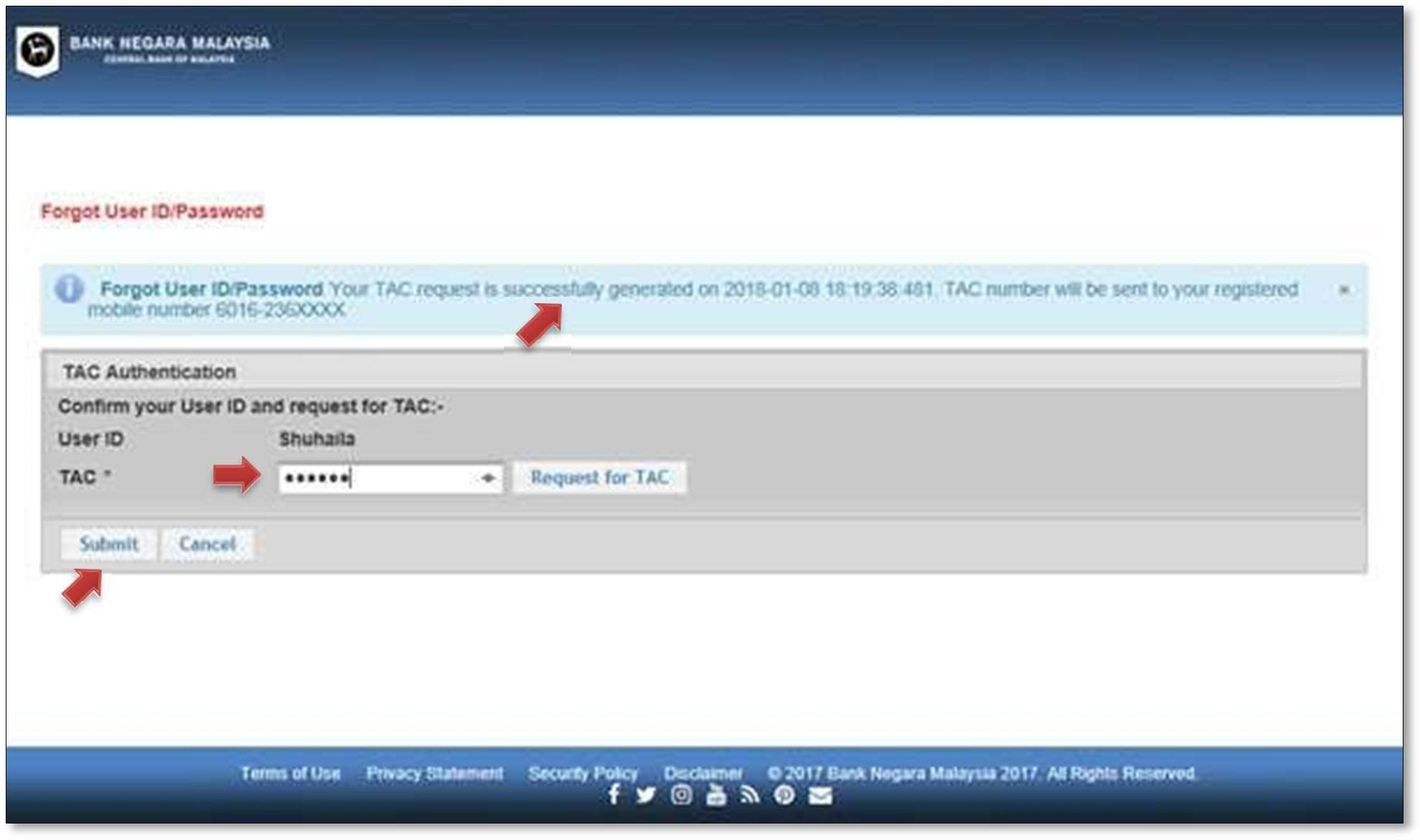
d. Upon successful authentication, the screen below will be displayed. Click “Request for TAC” button. A TAC number will be sent to your registered mobile phone.
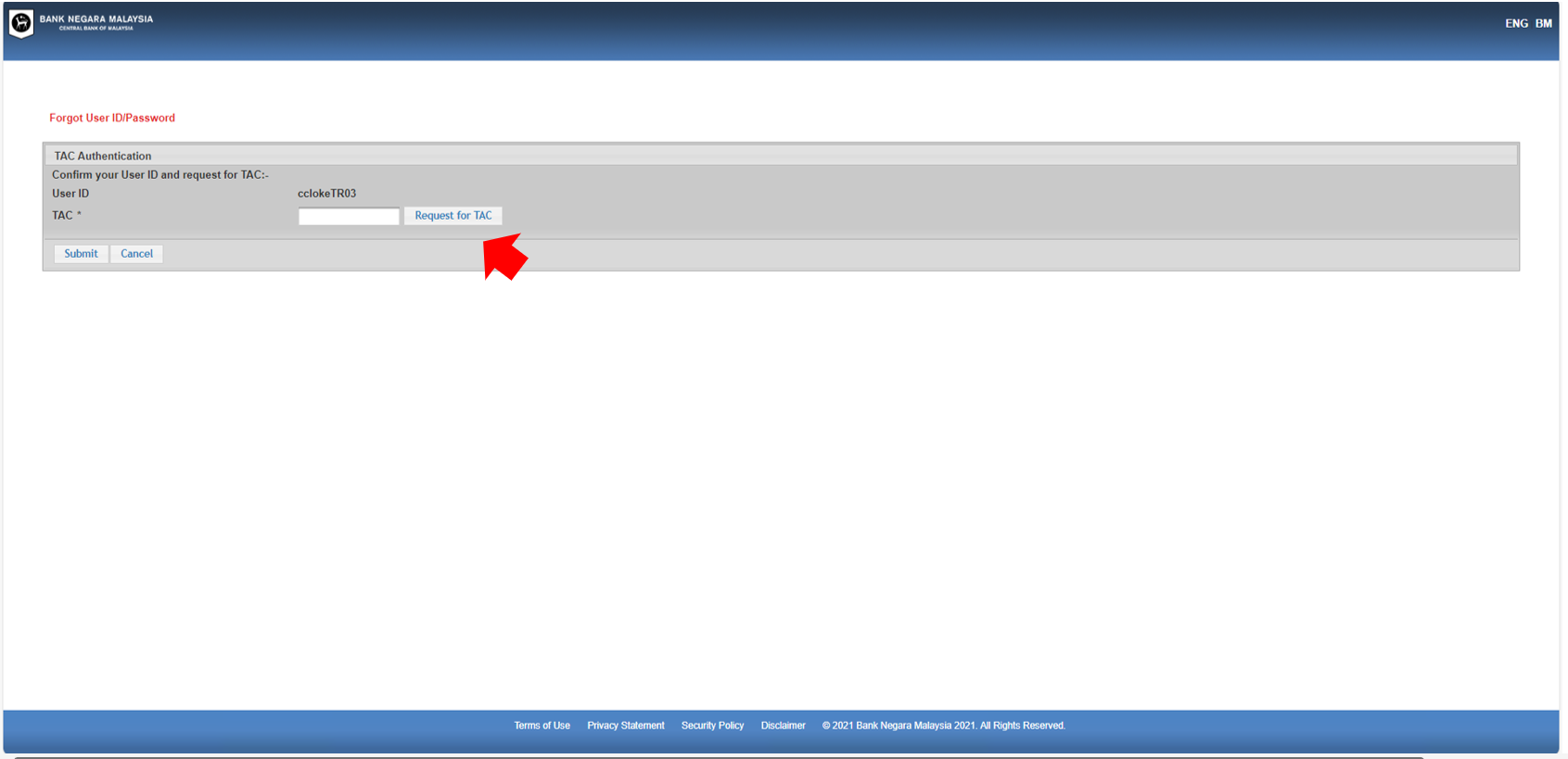
e. An acknowledgement message will be displayed.
i. Fill in the TAC number that is sent to your mobile phone in the field provided
ii. Click the “Submit” button
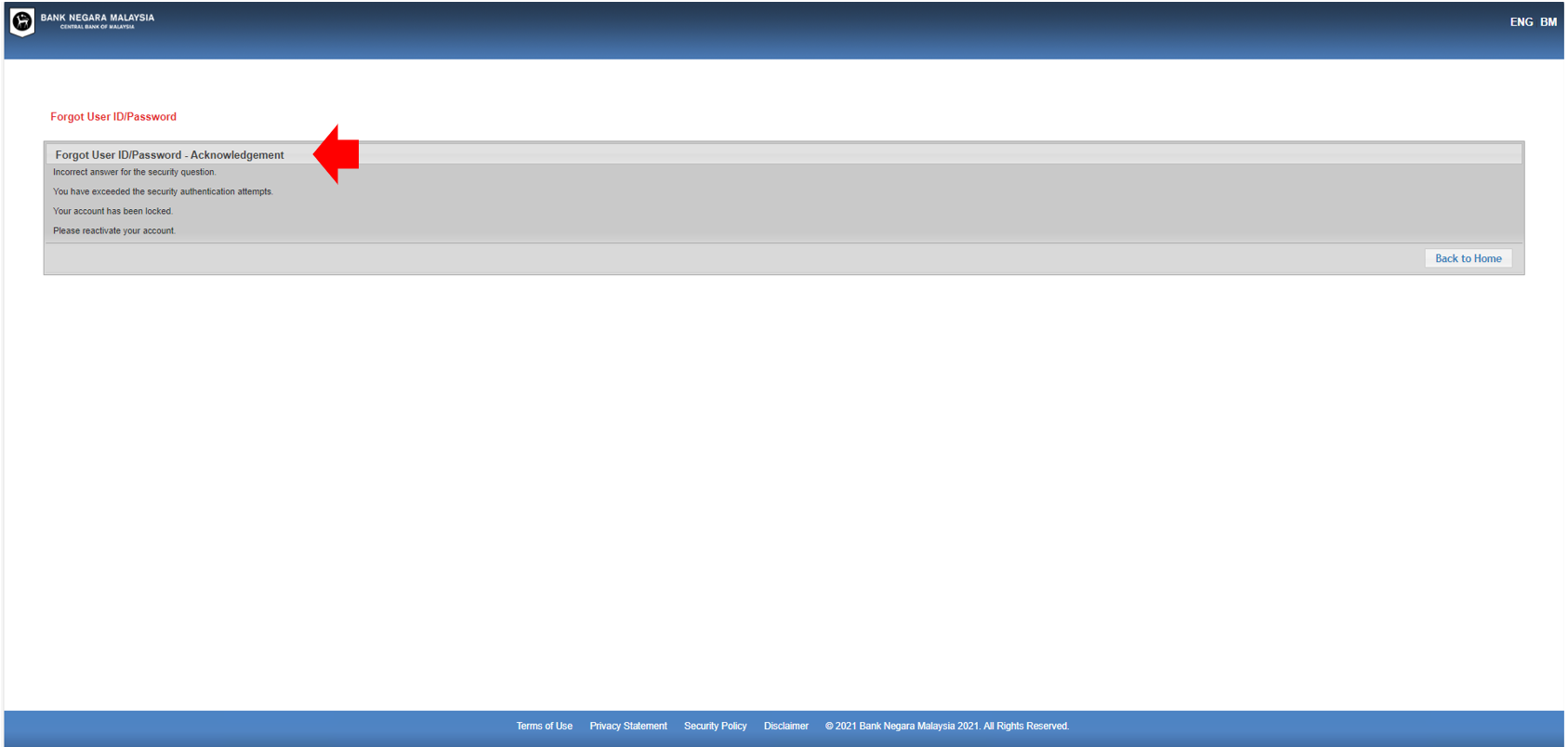
f. If all answers to the security questions are incorrect, the screen below will be displayed.
How do I activate my eCCRIS account after I registered at Kiosk?
a. Please follow these steps:
i. Login to eccris.bnm.gov.my using MS Edge or Google Chrome
ii. Click “First Time Login”
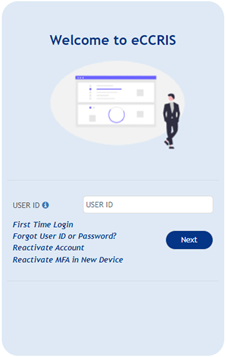
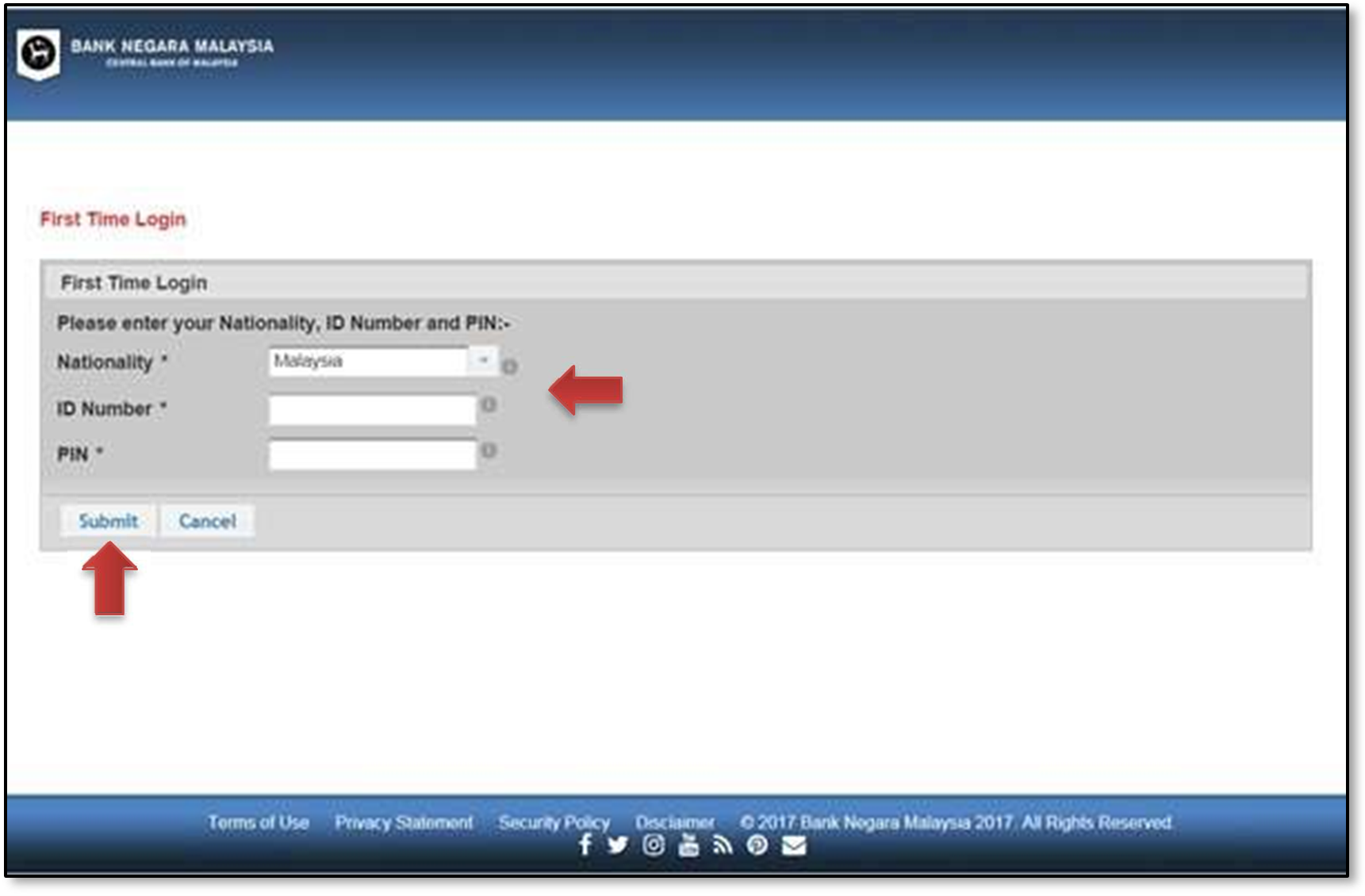
b. On the “First Time Login” page
i. Select your “Nationality” from the dropdown list
ii. Fill in the details:
ID number (12-digit MyKad/NRIC number or Passport number)
PIN number (a 6-digit code sent to the user’s registered mobile phone for activation of the eCCRIS account)
iii. Click the “Submit” button
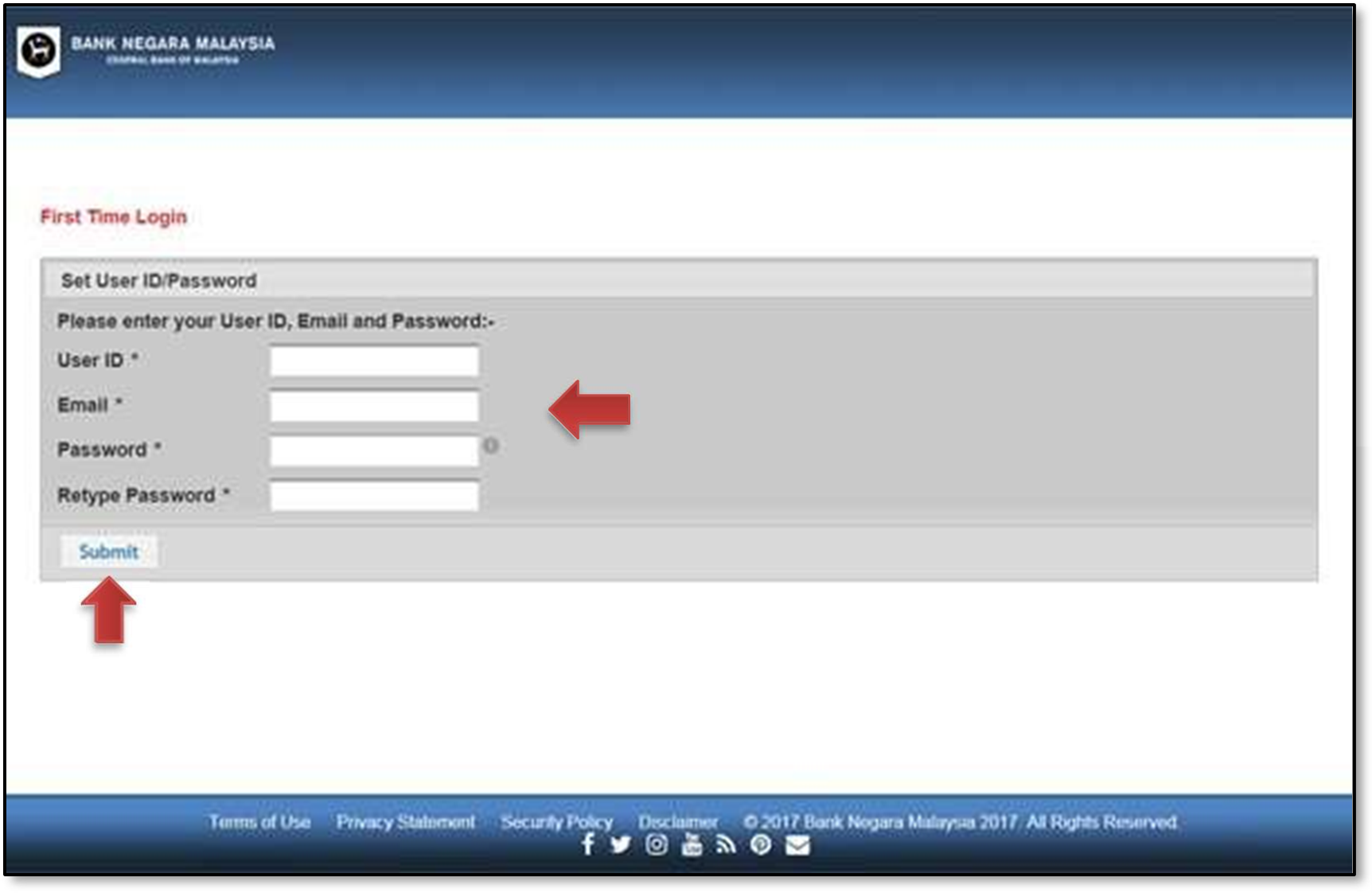
c. Set User ID/Password
i. Key in the preferred User ID to access eCCRIS, an email address for contact and create a password. Length of password must be a minimum of 10 characters, with a combination of capital letters (A-Z), small letters (a-z), digits (0-9) and special characters “~!@#$%^&*()_+”
ii. Click the “Submit” button
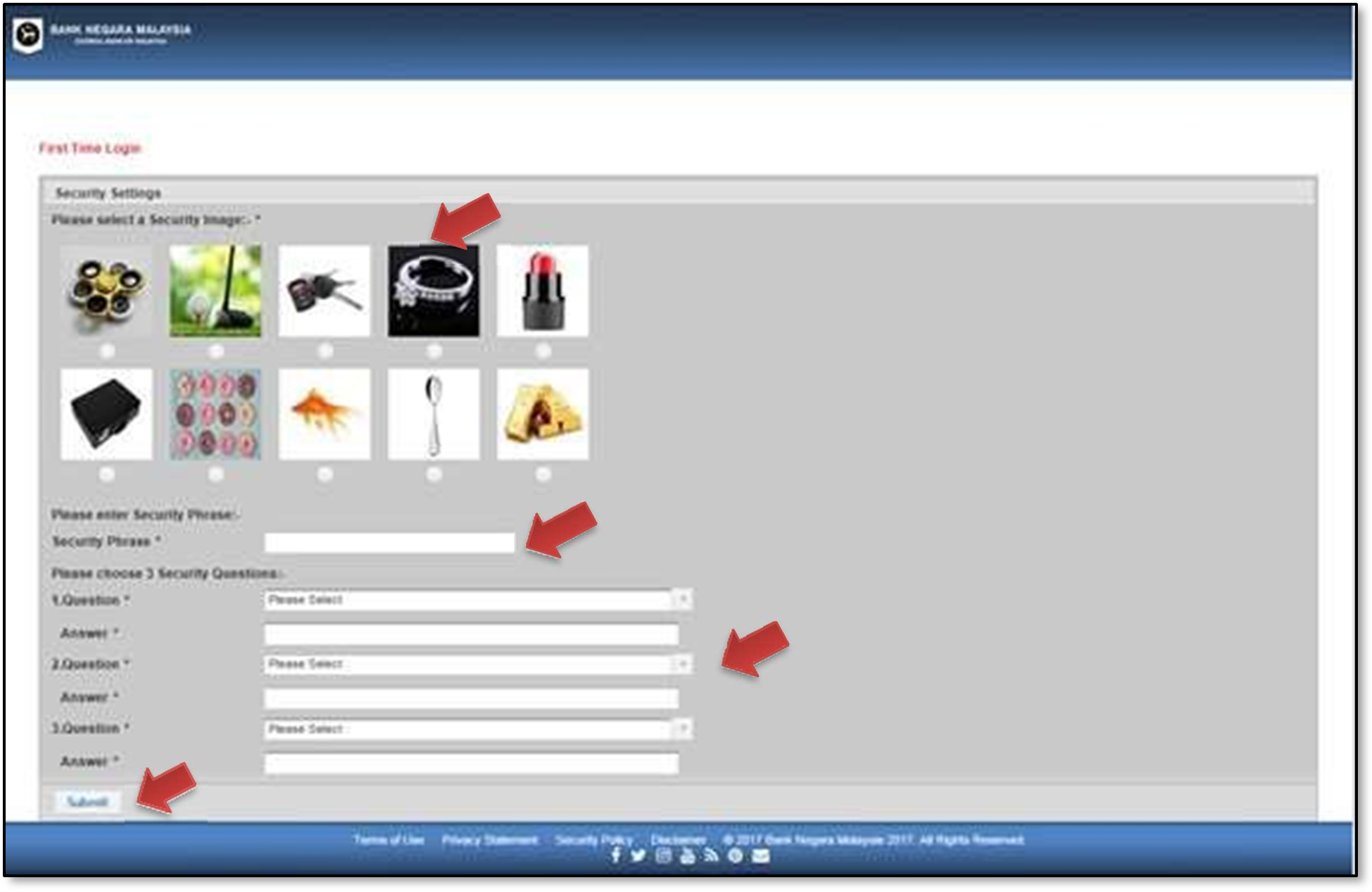
d. On the “Security Settings” screen
i. Select a security image, enter a security phrase, choose and provide an answer for at least one security question
ii. Click the “Submit” button
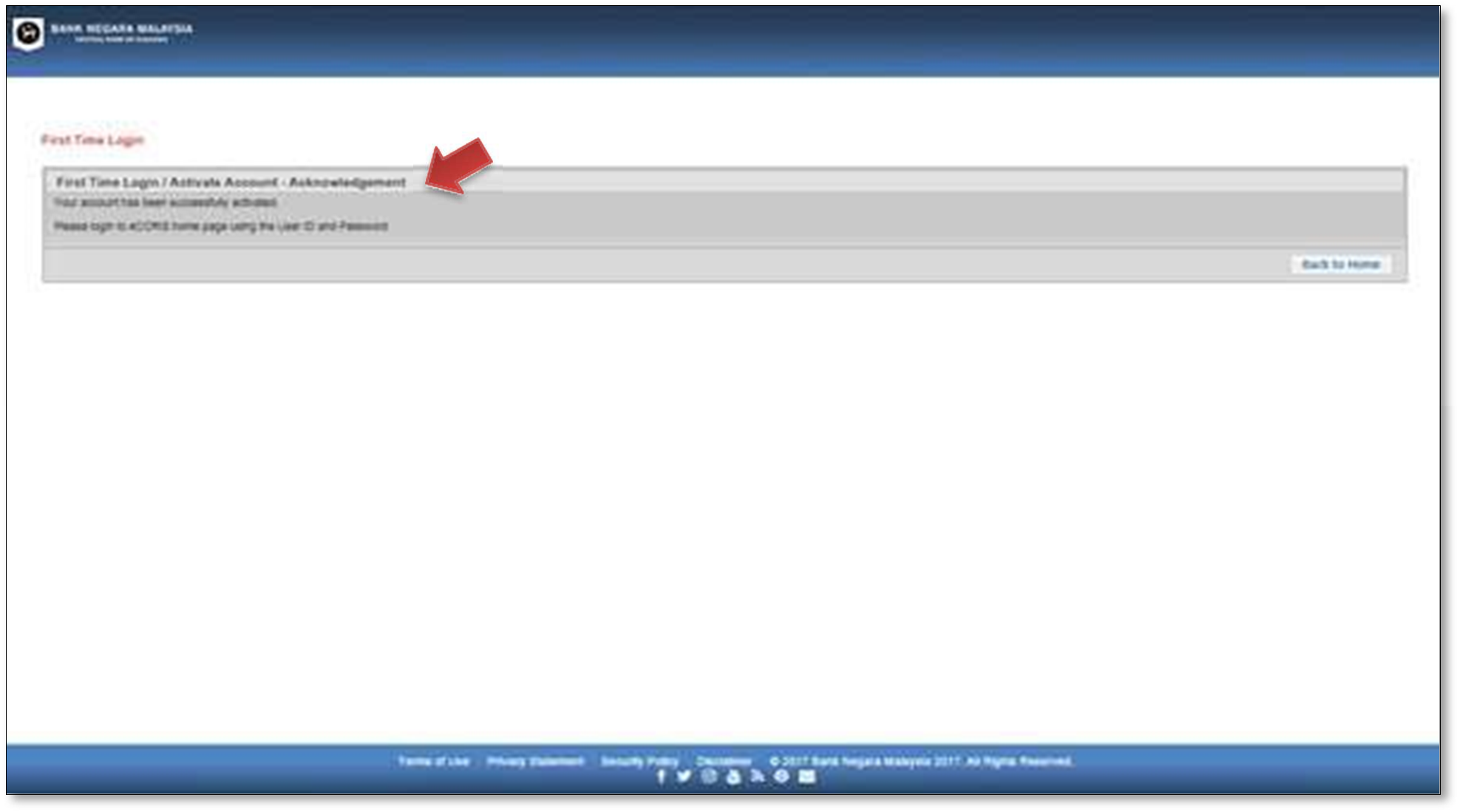
e. Once completed, an acknowledgement message will be displayed.
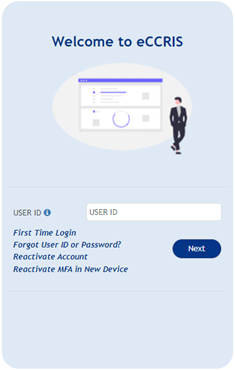
f. Follow these steps to login into your eCRIS account:
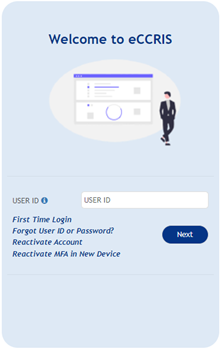
i. Enter User ID (as created by user)
ii. Click the “Next” button
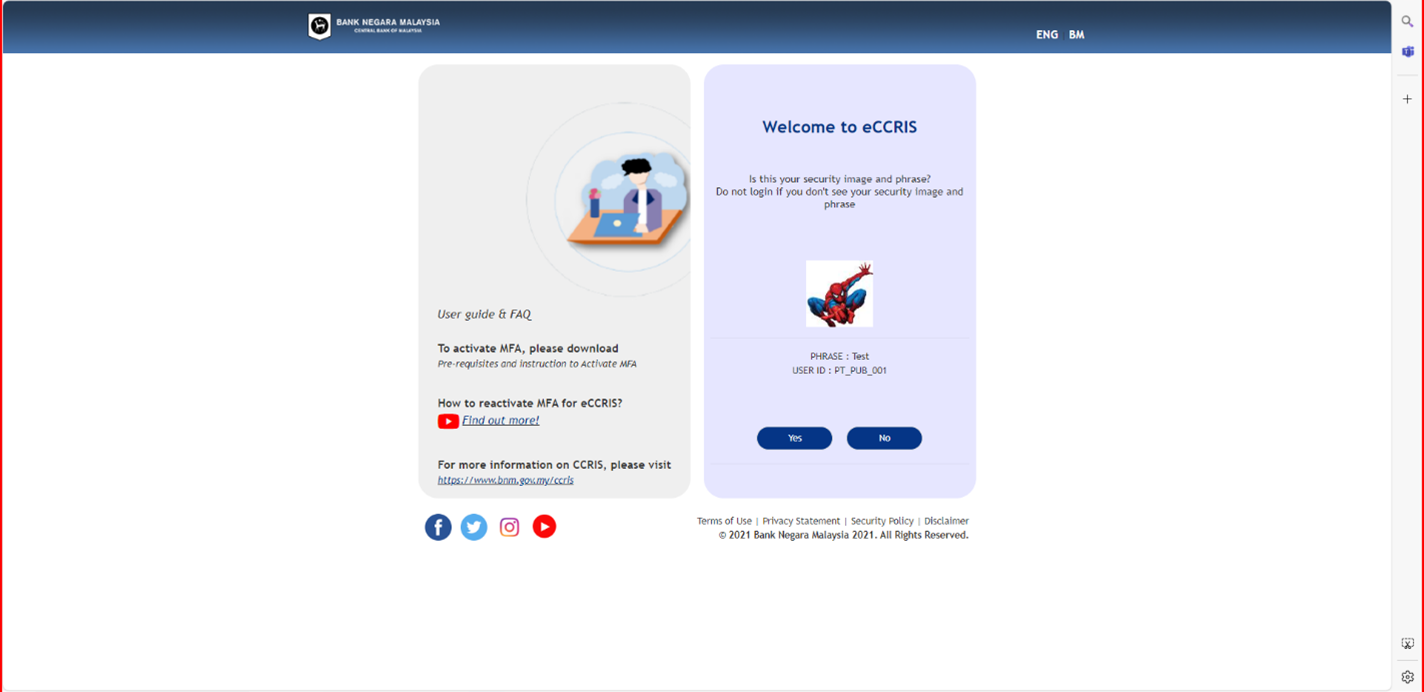
g. If the security image and phrase match the user’s chosen image and phrase, click “Yes” button to proceed to next step.
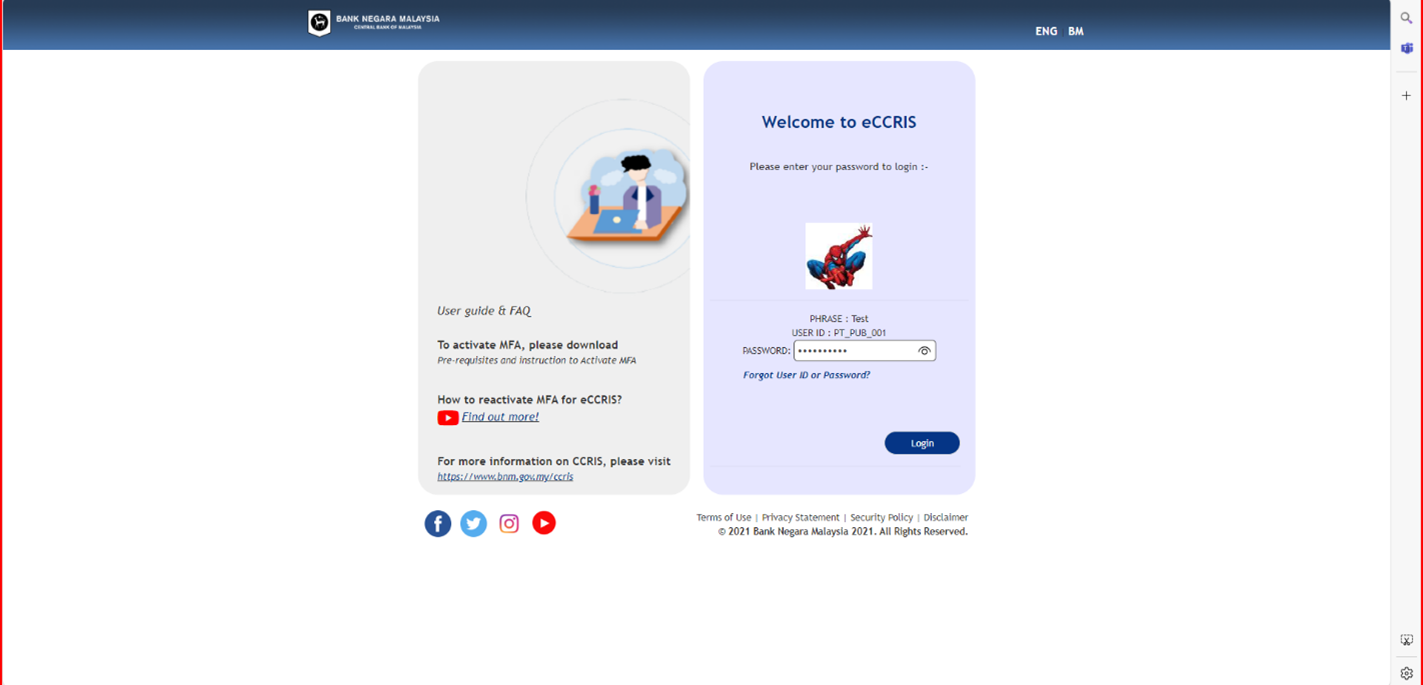
h. Enter password and click “Login” button.
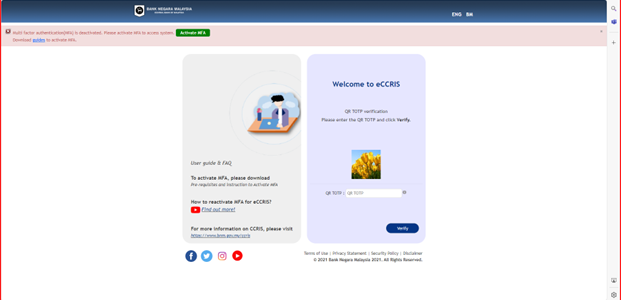
i. On QR TOTP verification page:
i. Click “Activate MFA” on the notification
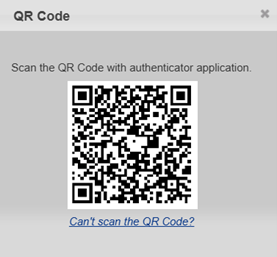
ii. Scan the QR code
iii. Fill in the QR TOTP field (6-digit code)
v. Click the “Verify” button
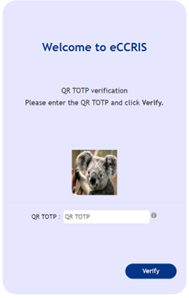
Retrieve the TOTP (Time-based One-Time Password) from your Authenticator app.
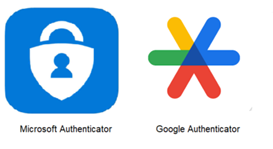
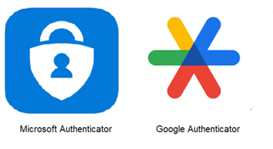
To activate MFA, you must first download an Authenticator Application using your mobile devices. Ensure that your mobile devices are updated to the latest Operating Systems (OS) and download an Authenticator Application from the Google Play Store, Apple App store, or Huawei AppGallery. You may choose to use Google Authenticator or Microsoft Authenticator.
Once downloaded, launch your mobile authenticator application, choose “+” to add an account, and choose “scan a QR Code”, and scan the QR Code on the webpage.
I have activated my eCCRIS account. Now, how do I obtain my CCRIS Report?
a. Follow these steps:
Visit eccris.bnm.gov.my
Enter User ID (as created by user)
Click “Next” button
b. If the security image and phrase match the user’s chosen image and phrase, click “Yes” button to proceed to next step.
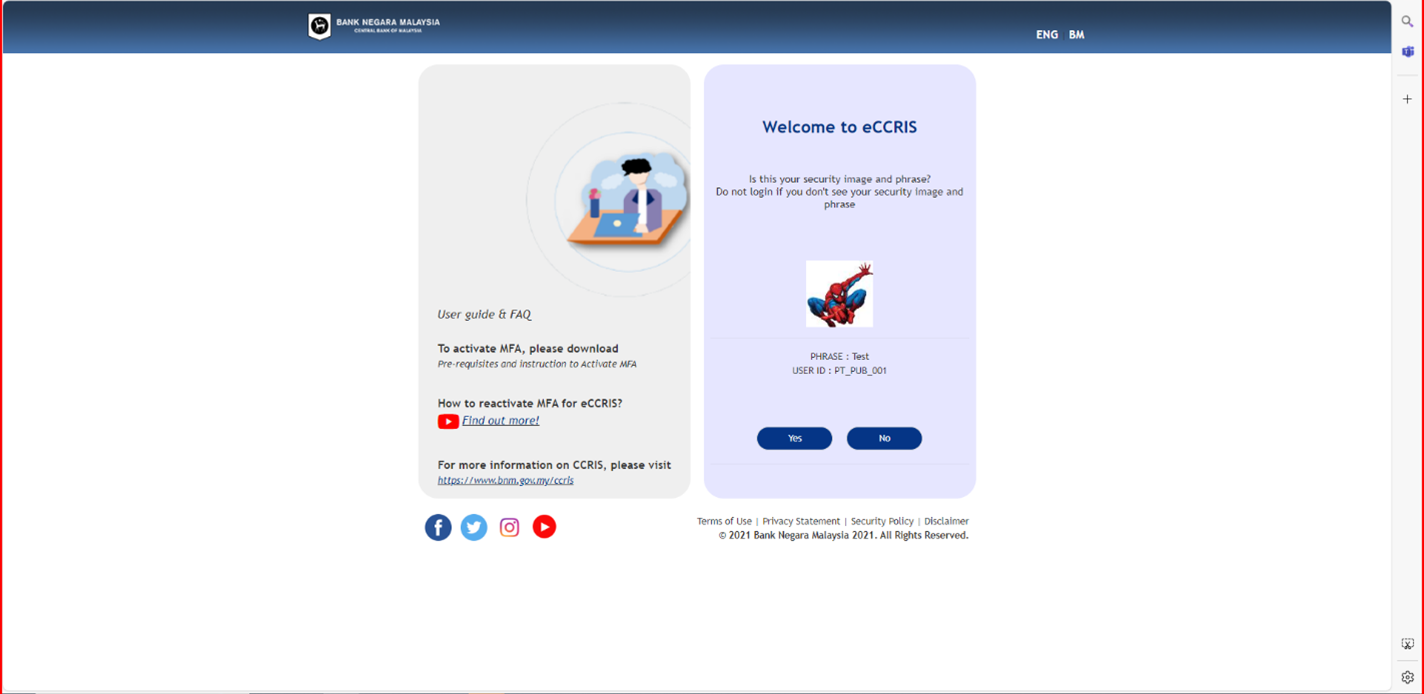
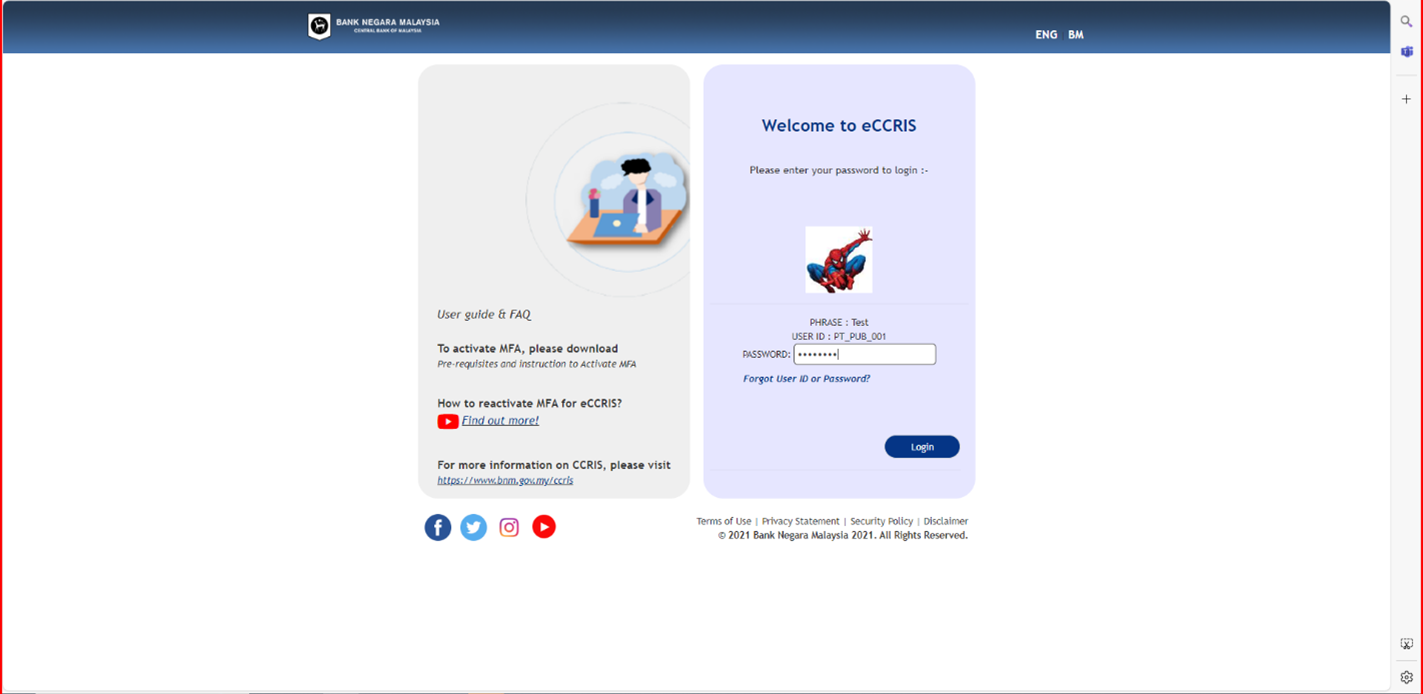
c. Enter password and click “Login” button
d. Retrieve the TOTP (Time-based One-Time Password) from your Authenticator app.
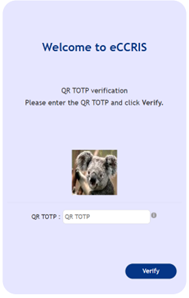
e. Enter the 6-digit TOTP and click the “Verify” button.
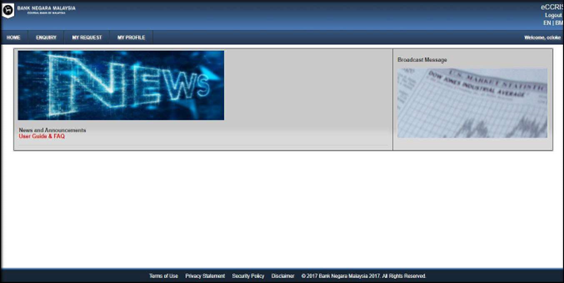
f. Upon successful login, the eCCRIS homepage will be displayed.
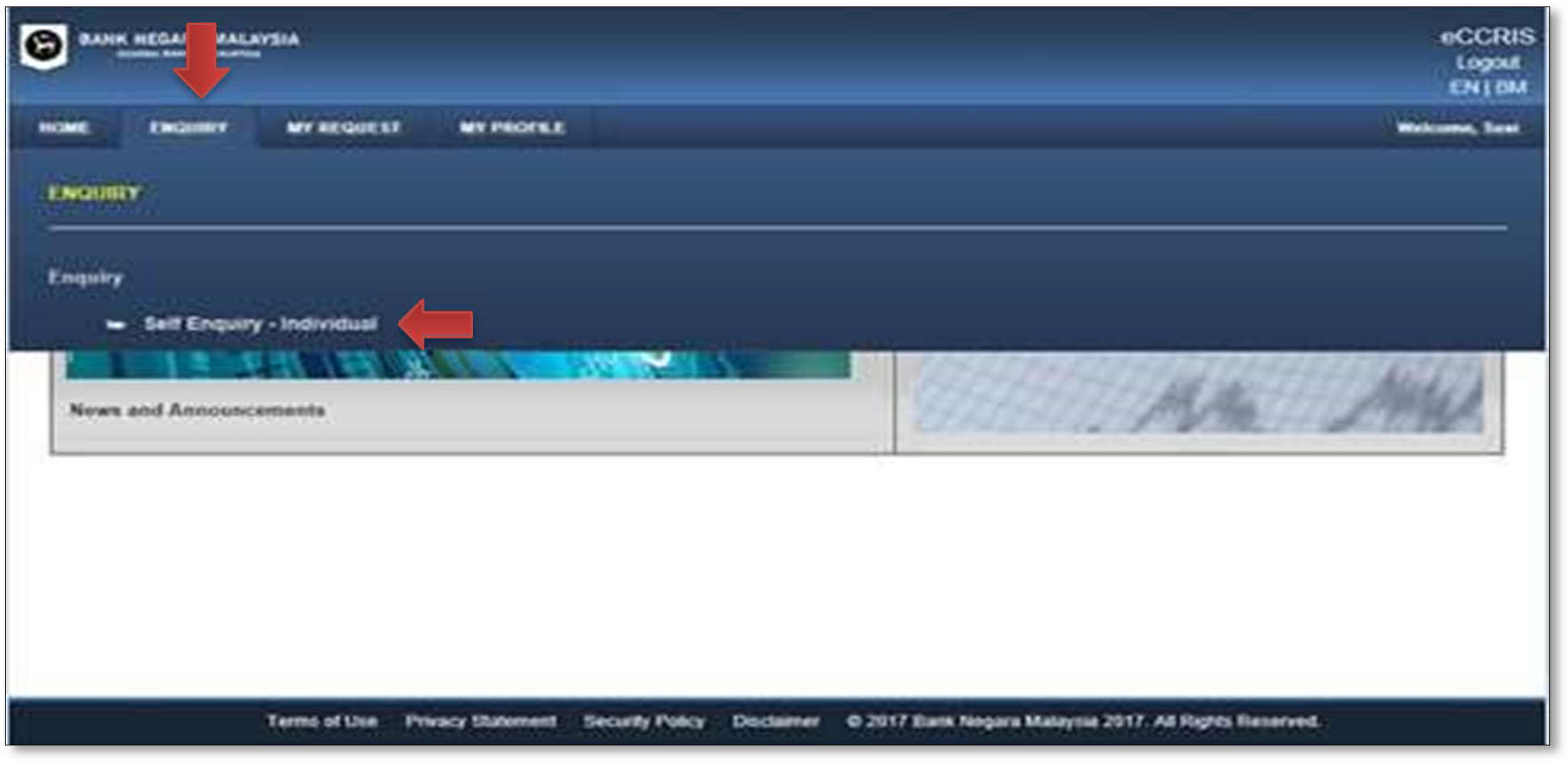
g. To retrieve the CCRIS report, click “ENQUIRY” tab, then click “Self Enquiry – Individual”
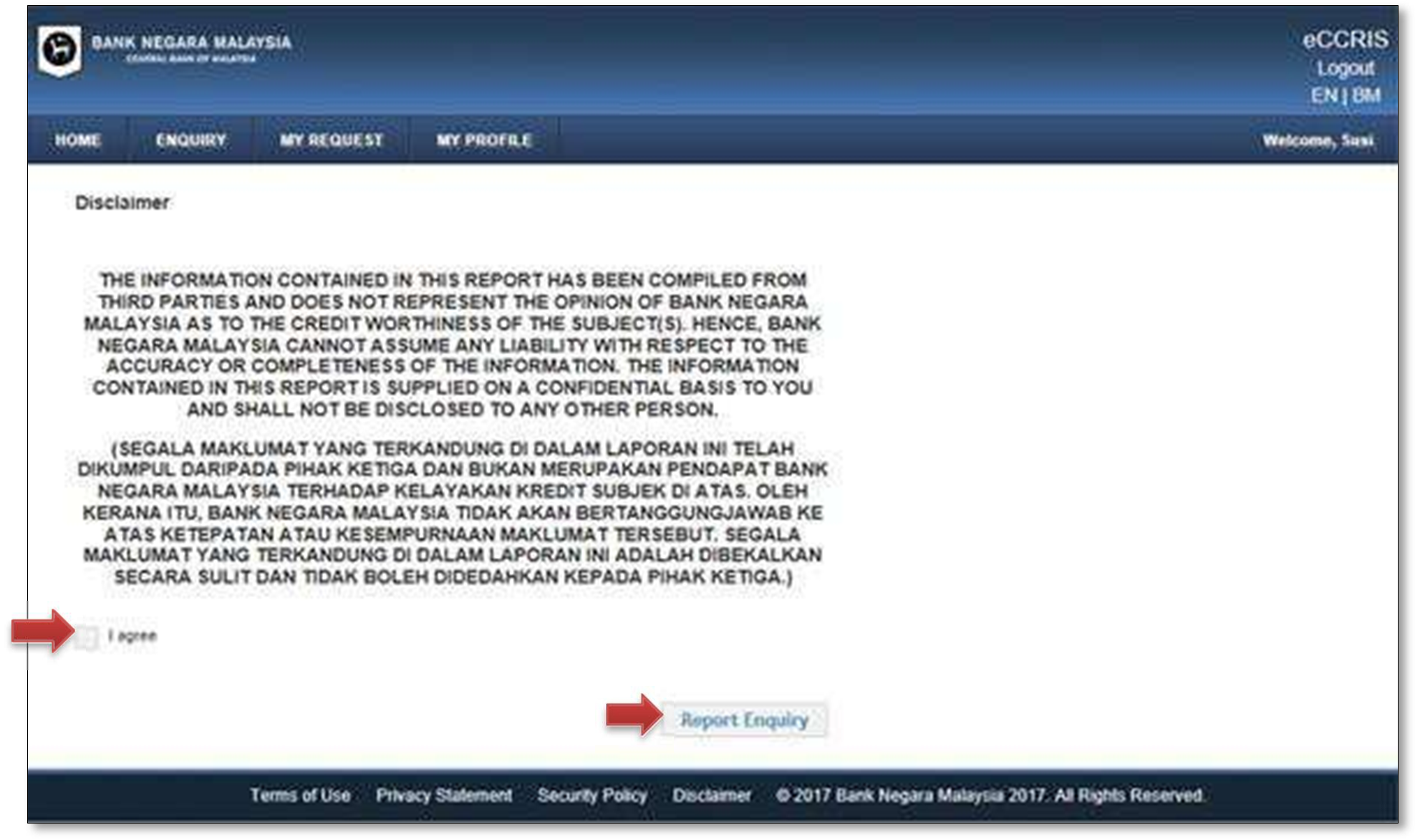
h. Indicate your acceptance of the Disclaimer statement by checking the “I Agree” checkbox. Then, click the “Report Enquiry” button
How can I download/save a copy of the CCRIS report?
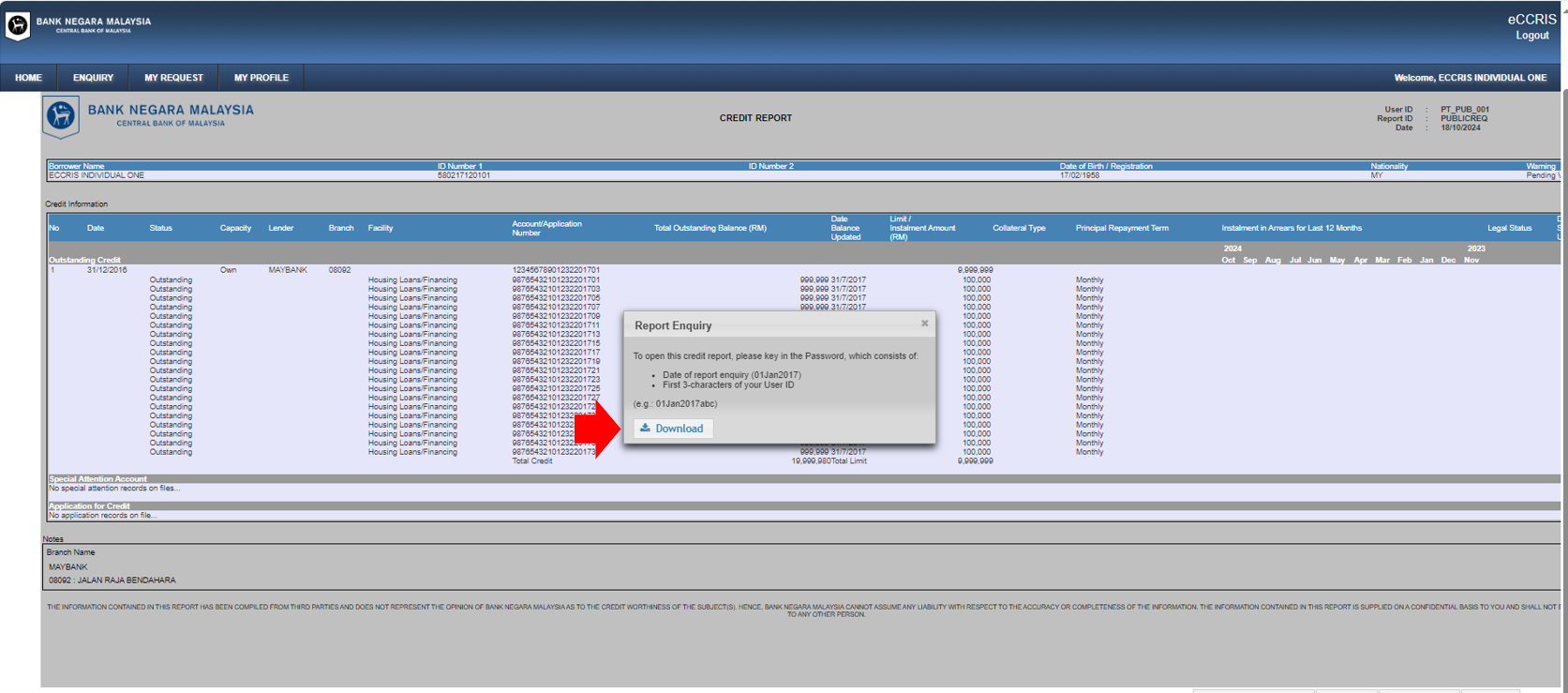
a. While the report is being displayed on screen, click the “Download” button.
b. A message box will appear. Click the “Download” button to start downloading the report.
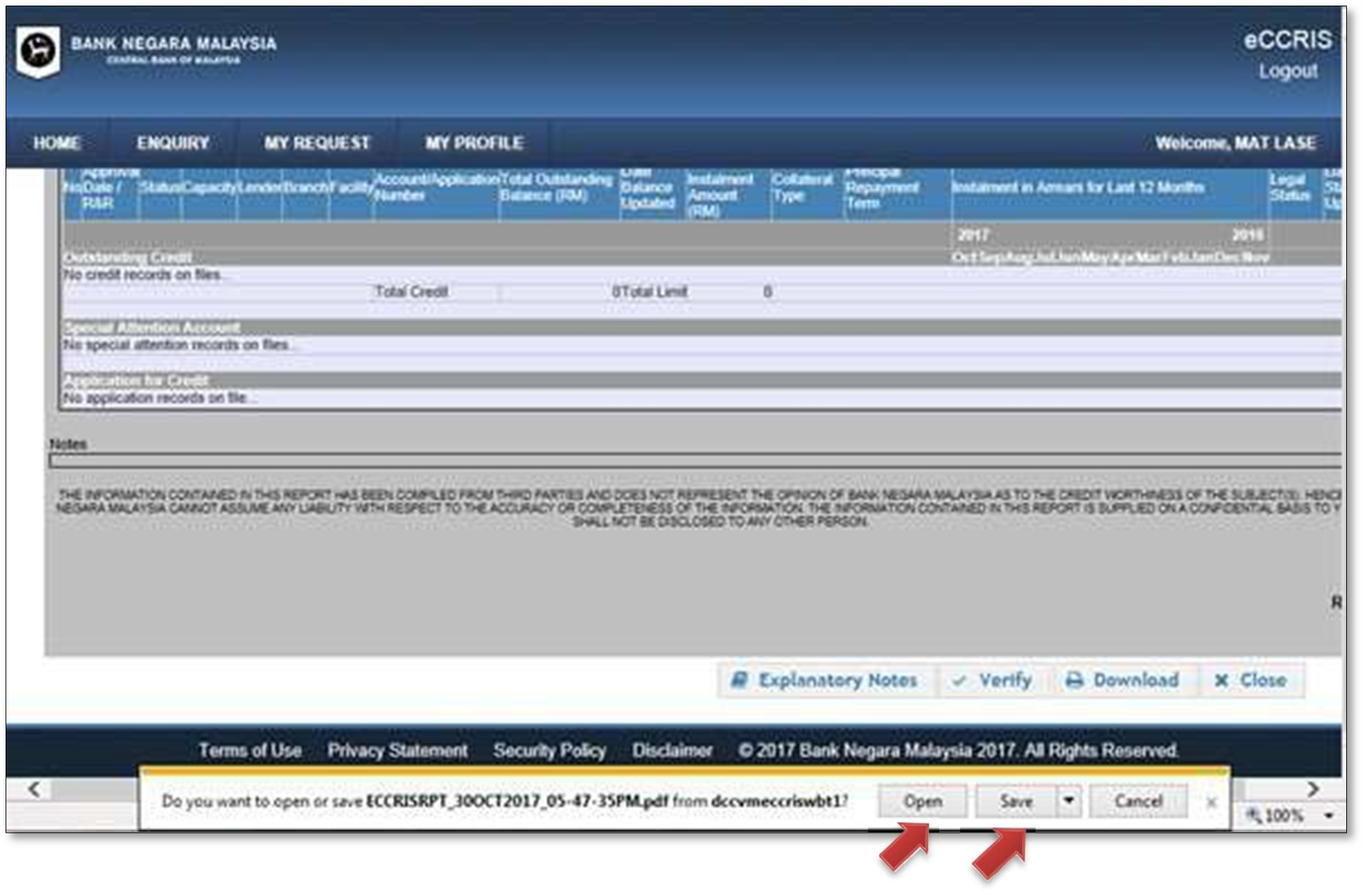
c. Click “Open” to view the report or click on the “Save” button to save a copy of the report to your local storage.
i. The downloaded report is saved in Portable Document Format (PDF) with a pre-assigned password as follows:
ii. Date of report enquiry (e.g. 30Oct2018, 10Feb2018)
iii. First 3-characters of your User ID (Ahmad, Hanafi)
Examples: 30Jan2018Ahm, 10Feb2018Han
iv. Once you enter the password, click “OK” to open the report. You will need a software which is capable of opening PDF files, to view the saved report.
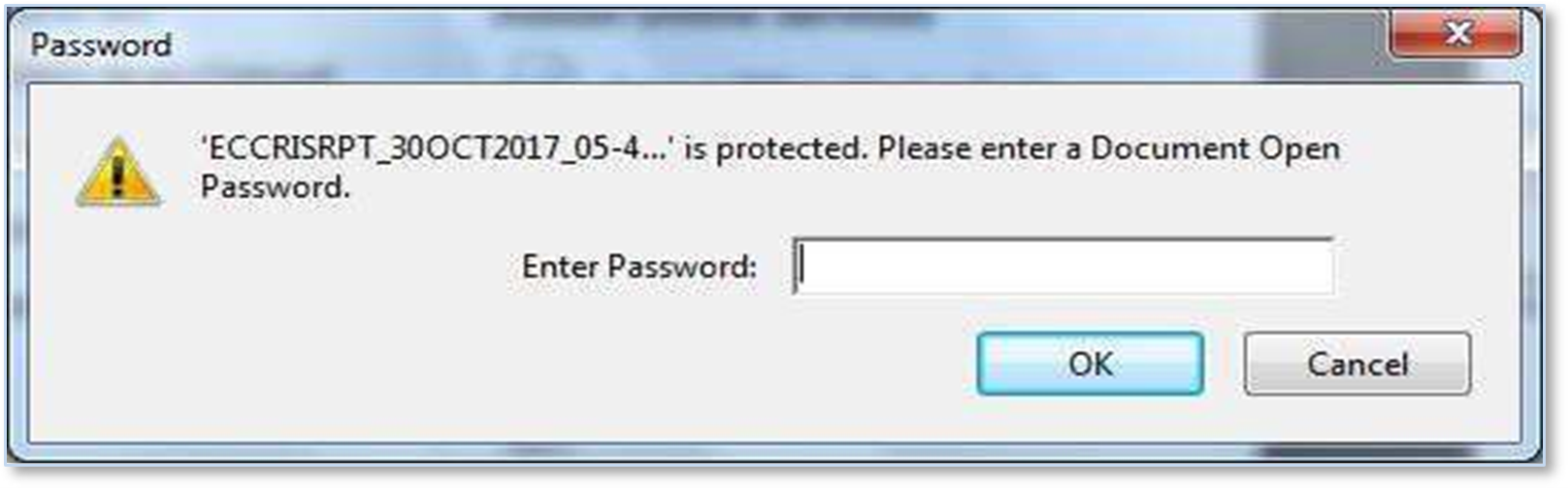
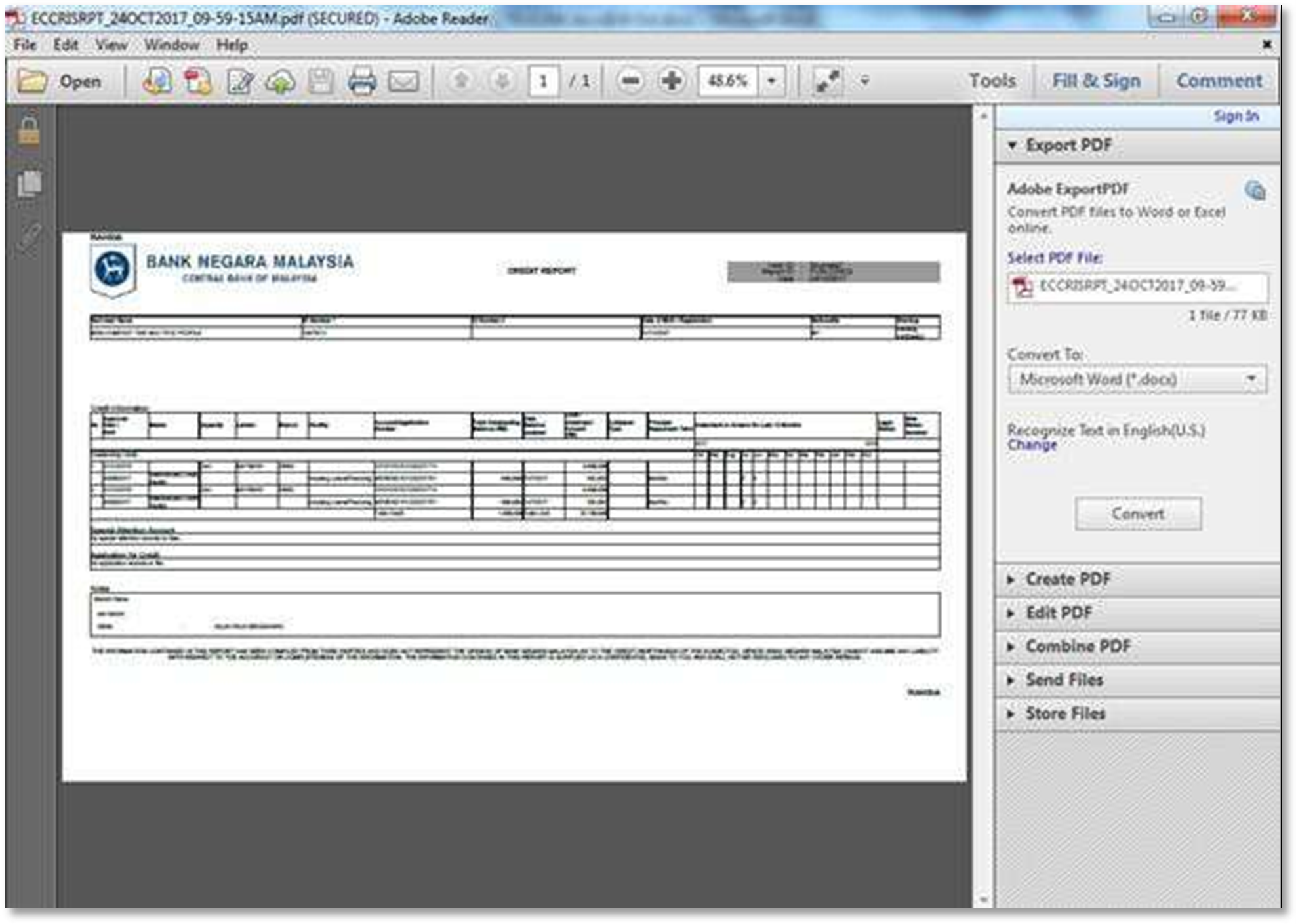
Example: The saved CCRIS report viewed using Adobe Reader software